
How do I view submissions as they happen?
This feature allows editors, trainers, and admins to view video coaching submissions from users in real time. You can see who has submitted videos, review their AI-generated scores and feedback, and track which submissions have been reviewed by coaches or managers.
When should you use this
Use this feature when you need to:
- Monitor submission activity across your coaching assignments
- Check the progress of individual users
- Review AI evaluations and scores for submitted videos
- See which submissions still need coach review
- Track completion rates for coaching assignments
Step-by-step instructions
Access the Coaching submissions list
- From the left navigation menu, click Video Coaching under the COACHING section.
- Select View Coaching from the submenu.
- You'll see a list of all coaching assignments with the following information:
- Coaching Title: The name of the coaching assignment
- Response Submitted: Shows completion percentage and submission count (e.g., "2/8" means 2 users submitted out of 8 assigned)
- Review Done: Shows review progress (e.g., "1/2" means 1 submission reviewed out of 2 total submissions)
- Status: Whether the coaching is Active, Closed, or Ends in a specific timeframe
- Analytics: Icon to view detailed analytics

View detailed analytics for a coaching assignment
- In the Analytics column, click the chart icon next to the coaching assignment you want to review.
- The Coaching Analytics page opens, showing:
- Completion status charts (video submission and coach review progress)
- Participation breakdown by location or team
- Average AI scores
- A detailed table listing all participants
View an individual user's submission
- In the participant table at the bottom of the Analytics page, find the user whose submission you want to view.
- Click on the Participant Name (displayed as a blue link).
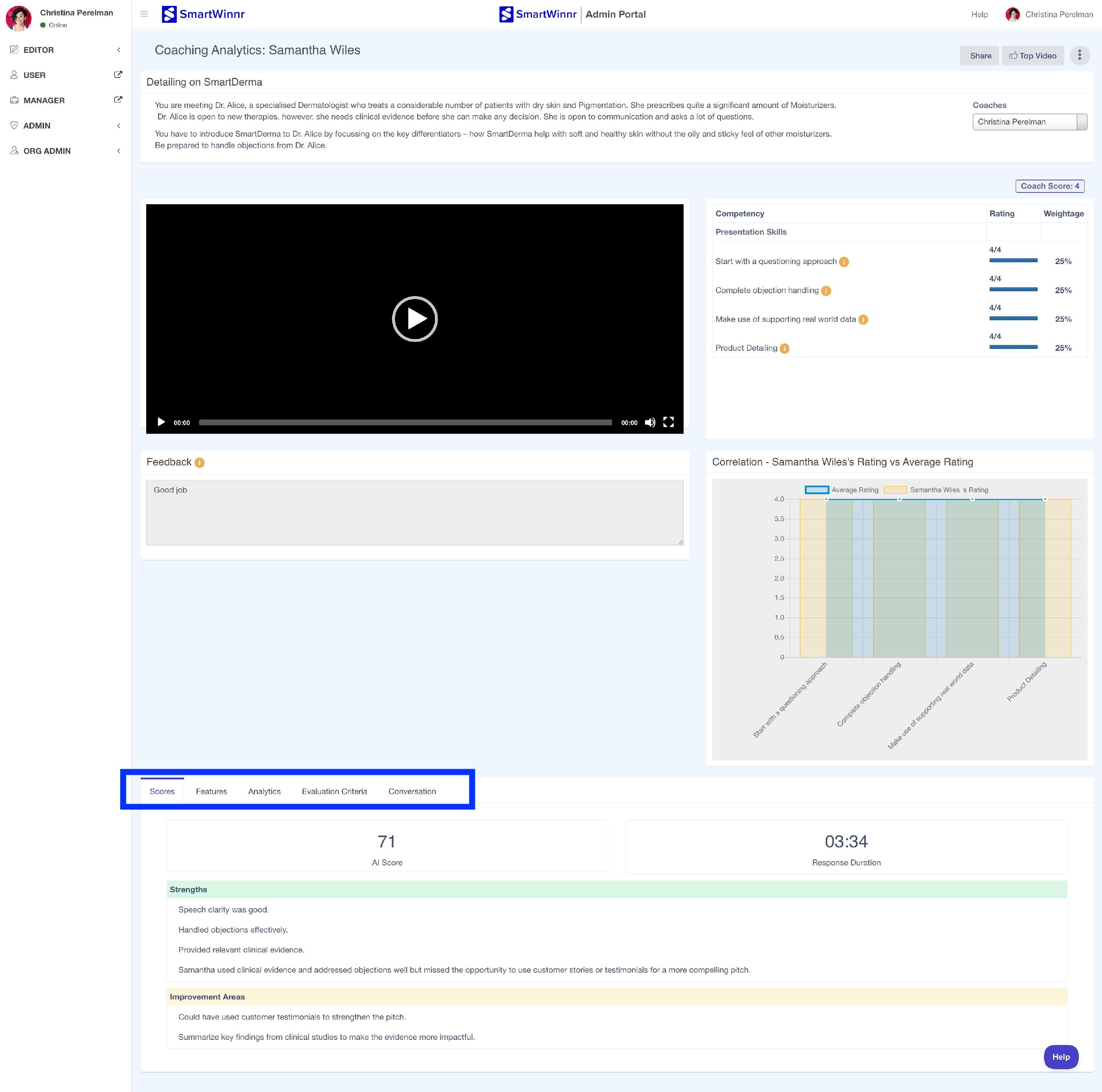
- The individual submission page opens, displaying:
- Coach name: The assigned coach or manager who will review this submission
- Submission date and time
- Video player: Watch the submitted video
- Attempts dropdown: If the user submitted multiple times, select which attempt to view

Review submission details using the tabs
Once you're viewing an individual submission, use the tabs at the top to see different aspects of the evaluation:
- Scores: View the overall AI score, response duration, strengths, and improvement areas
- Features: Check if the user covered required product features or keywords, and view any banned words detected
- Analytics: See speaking pace (words per minute), score trends across attempts, and progress on individual objectives
- Evaluation Criteria: Review detailed scoring for each competency or knowledge area the AI evaluated
- Compliance and Fact Check: See compliance violations, factual errors, and suggestions for balanced messaging
What happens next
After viewing submissions:
- You can navigate back to the Coaching Analytics page to view other submissions
- Coaches or managers can use this information to provide additional feedback or coaching
- You can track which submissions still need human review in the "Review Done" column
Tips
- The submission count format "2/8" tells you exactly how many users out of your total assigned have completed the coaching
- Use the Attempts dropdown to compare a user's improvement across multiple submissions
- The AI provides both strengths and improvement areas automatically, which can guide coaching conversations
- Filter options at the top of the Coaching page (Date Range, Business Unit, Coaching Type, Status) help you narrow down to specific coaching assignments
Things to know
- Only submitted videos appear in the Analytics view. Users who haven't submitted yet won't show in the participant table.
- The review count reflects reviews completed by coaches or managers, not the AI evaluation (which happens automatically).
- Scores and feedback are generated by AI immediately upon submission, so you can view them right away without waiting for human review.