
How to Review AI Coaching Submissions as a Manager?
As a manager, you can review AI coaching submissions from your team members. When a rep completes an AI role-play, you have the option to provide additional feedback beyond the automated AI evaluation. This helps you give personalized coaching, identify skill gaps, and support reps who may need extra guidance.
When should you use this
Use this feature when you want to:
- Provide personalized feedback on a rep's performance in a role-play scenario
- Identify specific areas where a team member needs improvement
- Recognize strong performance and reinforce good habits
- Support reps who received lower AI scores and need additional coaching
- Review critical skills like objection handling, product messaging, or communication techniques
This feature is optional and depends on your availability. The AI provides automated feedback, but your human insight adds valuable context and personalized guidance.
Step-by-step instructions
Access pending coaching reviews
- Log in to SmartWinnr
- Click Coaching in the left navigation menu under the "Coaching" section
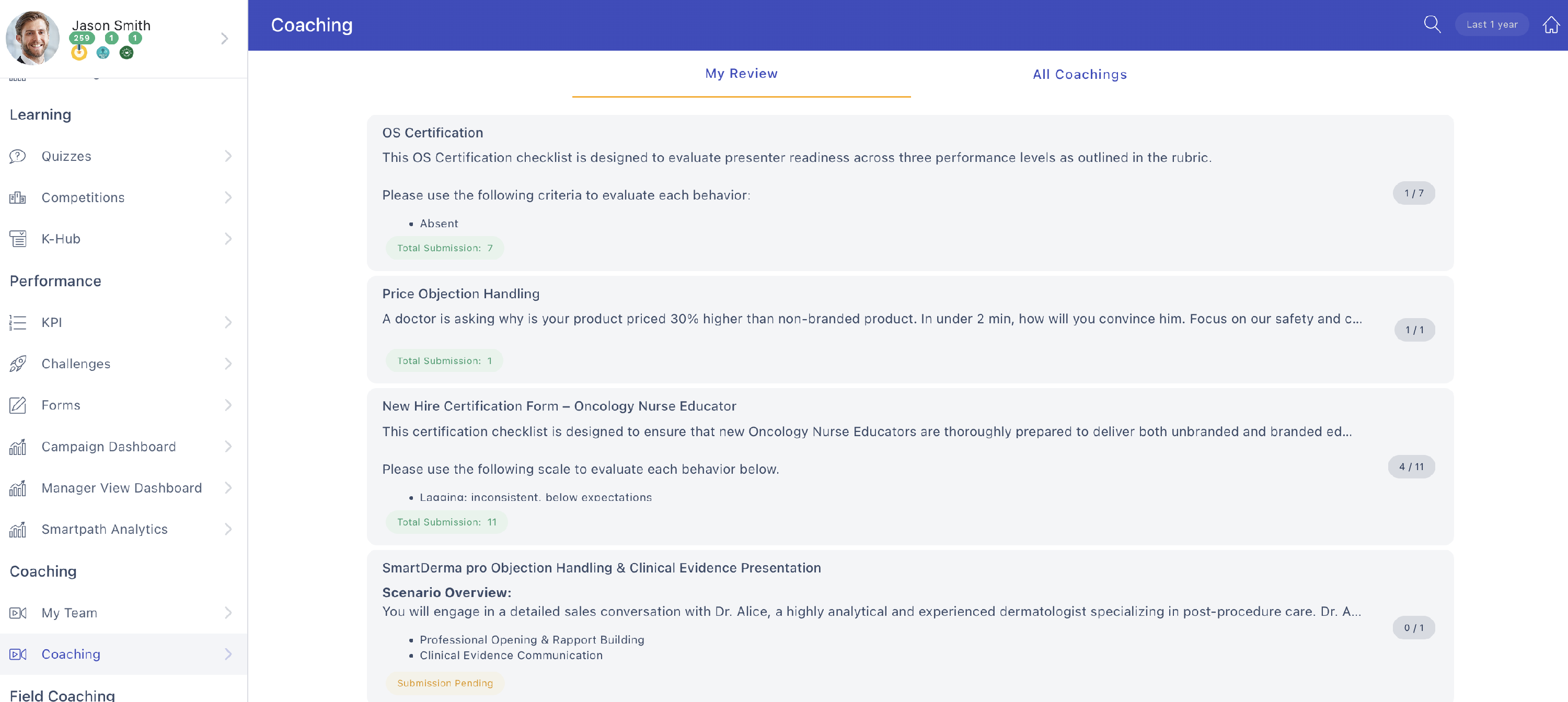
- Click the My Review tab at the top of the screen
You'll see a list of coaching assignments that need your review. Each item shows:
- The coaching title (e.g., "OS Certification", "Price Objection Handling")
- A brief description of the scenario
- The submission count (e.g., "1/7" means 1 review completed out of 7 total submissions)
Open a submission to review
- Click on any coaching assignment from the list
This opens the detailed review screen for that specific rep's submission.
Evaluate the submission
- Review the competencies listed under the Competencies section
- For each competency row, select one checkbox to indicate the rep's performance level:
- ABSENT: The rep did not demonstrate this skill
- LEARNING: The rep is developing this skill but needs improvement
- DEMONSTRATING: The rep successfully demonstrated this skill
You can only select one performance level per competency.

Some competency rows may show a blue information icon and a percentage (e.g., "8%"). This indicates the weight or importance of that competency in the overall evaluation.
Submit your review
- After evaluating all competencies, scroll to the bottom of the page
- Click Submit Review
What happens next
After you submit your review:
- The rep receives a notification that you've completed their coaching review
- Your feedback becomes visible to the rep alongside their AI-generated feedback
- The submission moves from "pending" to "completed" in your review queue
- You can return to the My Review tab to see your remaining pending reviews
Tips
- You can edit your review later. If you need to update your feedback after submitting, you can return to the submission and make changes.
- Review at your own pace. There's no deadline to complete reviews. Prioritize based on your schedule and which reps need immediate feedback.
- Focus on reps with lower AI scores first. These team members may benefit most from your personalized coaching.
- Use the COLLAPSE ALL button (visible in the top-right of the Competencies section) to minimize the competency list if you need a cleaner view.
Things to know
- Reviews are optional. The AI provides automated feedback, so your review adds extra value but isn't required.
- You can only see submissions from your direct reports.
- The rep can view both the AI feedback and your manager feedback side-by-side.
- Trainers can also see your feedback if they access the coaching reports.