
How can a User View Feedback After Submitting an AI Coaching?
This guide explains how to access and review feedback after completing an AI coaching assignment. Feedback includes your AI score, strengths, areas for improvement, and detailed performance analysis across each objective. You can view feedback immediately after submission or return to it later at any time.
This article is for sales reps and field reps who have completed AI coaching attempts.
When is Feedback Generated
Feedback is calculated automatically after you submit your AI coaching attempt. The system analyzes your recorded conversation and generates:
- AI Score: An overall performance score based on how well you completed the objectives
- Response Duration: The total time you spent in the coaching session
- Strengths: Specific things you did well during the conversation
- Improvement Areas: Recommendations for how to improve your performance
- Objective-wise Evaluation: Detailed scoring for each session objective
- Objections Handled: Analysis of how you responded to customer questions or concerns
- Compliance & Factual Accuracy: Flags for any compliance issues or factual errors (if enabled for your coaching)
The evaluation process takes only a few moments, and feedback becomes available as soon as processing is complete.
How to View Feedback Immediately After Submission
After you complete an AI coaching session:
- Submit your coaching response: The AI coaching session ends automatically when you complete the conversation
- The system processes your submission: This takes just a few seconds
- The feedback screen opens automatically: You'll be taken directly to your results
- Review your results: You'll see your overall AI score, response duration, strengths, and improvement areas
The feedback screen displays immediately, so you can review your performance right away.
How to View Feedback Later
If you want to review your feedback after leaving the session, you can access it at any time:
- Log in to the platform
- Navigate to Coaching in the left menu
- Click Video Coaching
- Open your coaching folder (for example, the folder containing your assigned program)
- Locate the coaching assignment you completed
- Click View Feedback
The detailed feedback page opens, showing all tabs and analysis from your attempt.

Understanding the Feedback Screen
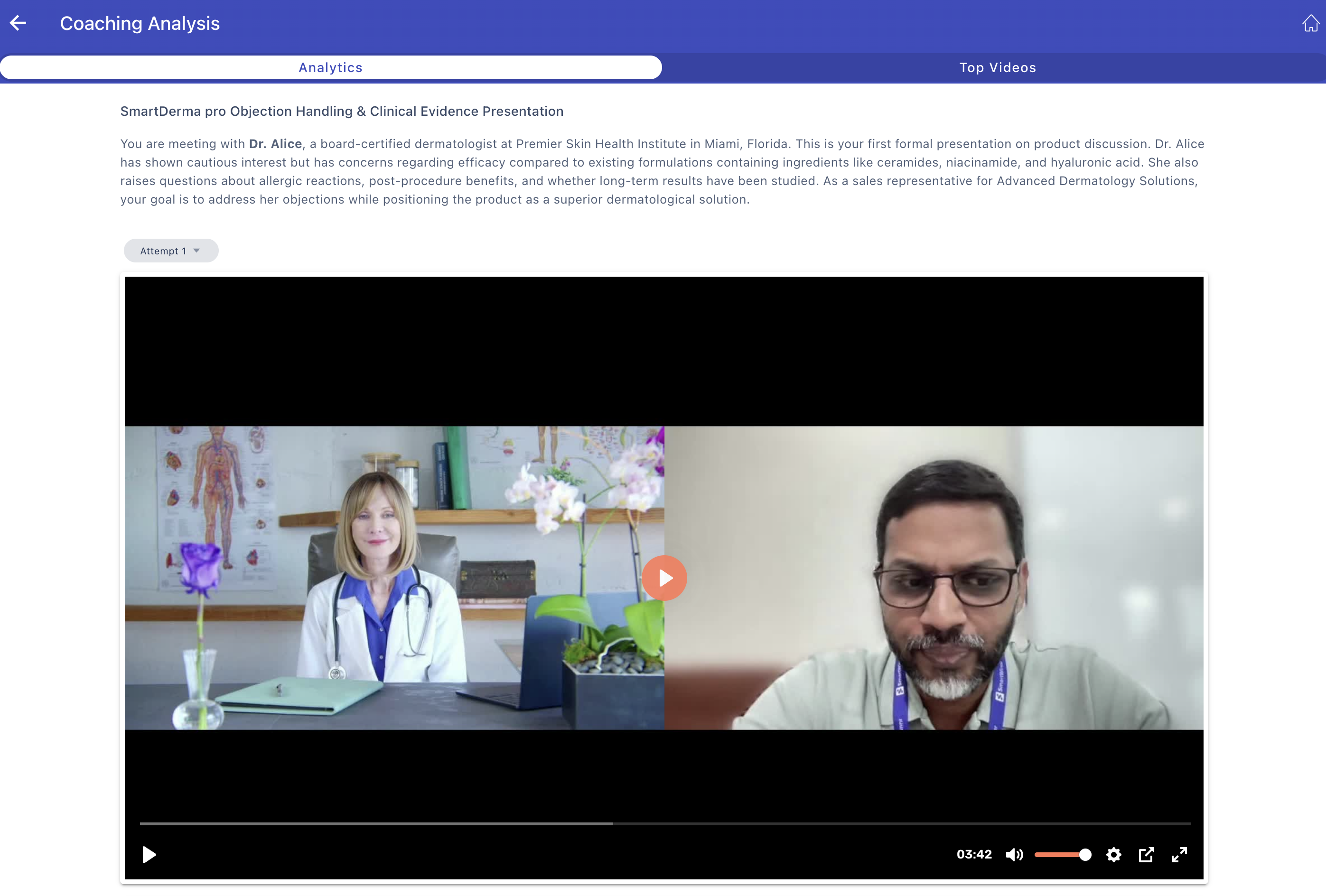
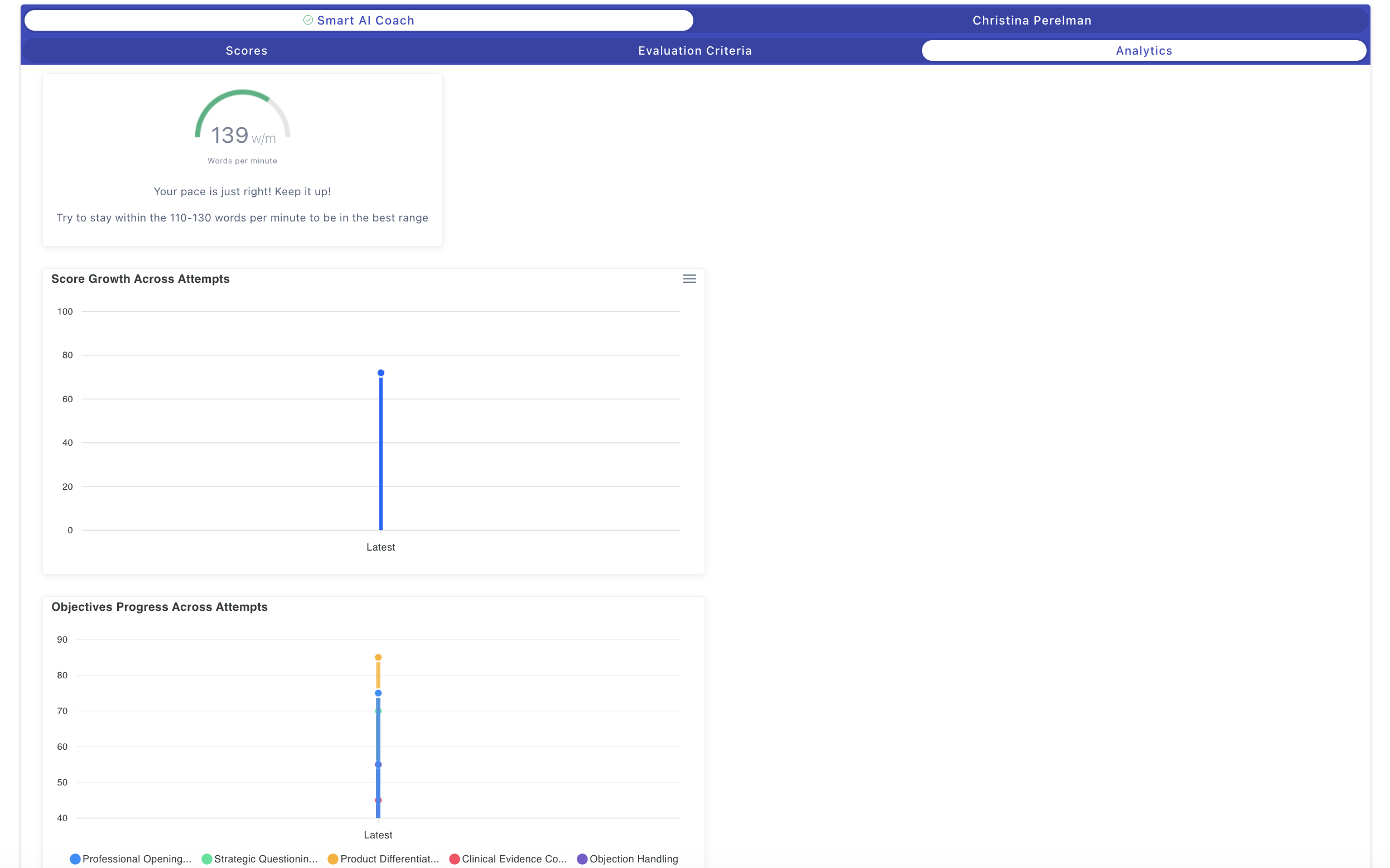
The Analytics section allows you to watch your recorded AI coaching attempt and review your actual performance. This section helps you observe your delivery, body language, tone, and confidence during the conversation. By watching your recording alongside the AI feedback, you can understand exactly where you excelled and where you need improvement. You can also compare recordings across multiple attempts to track your progress over time.
Key Elements on This Screen
A. Coaching Title & Scenario
At the top of the screen, you'll see:
- Coaching title: The name of your AI coaching assignment
- Scenario description: A brief overview of the role-play scenario, including who you were meeting with and the context of the conversation
This information helps you remember the specific coaching assignment you're reviewing.
B. Attempt Selector
A dropdown menu labeled "Attempt 1," "Attempt 2," etc., appears near the top of the screen. This selector allows you to:
- Switch between different attempts you've made for the same coaching
- Review previous recordings to see how your performance has evolved
- Compare your approach across multiple tries
Simply click the dropdown and select the attempt number you want to review.
C. Video Playback Window
The video player displays your recorded conversation with the AI avatar. The playback controls include:
- Play/Pause button: Start or stop the video
- Seek bar: Jump to specific moments in your recording
- Volume control: Adjust audio levels
- Settings icon: Access playback options
- Full-screen option: Expand the video to full screen for detailed review
Use the video to observe your:
- Confidence: Do you sound assured and knowledgeable?
- Clarity: Are your explanations clear and well-structured?
- Body language: Does your posture and facial expression convey professionalism?
- Tone: Is your voice engaging and appropriate for the conversation?
D. Scores Tab
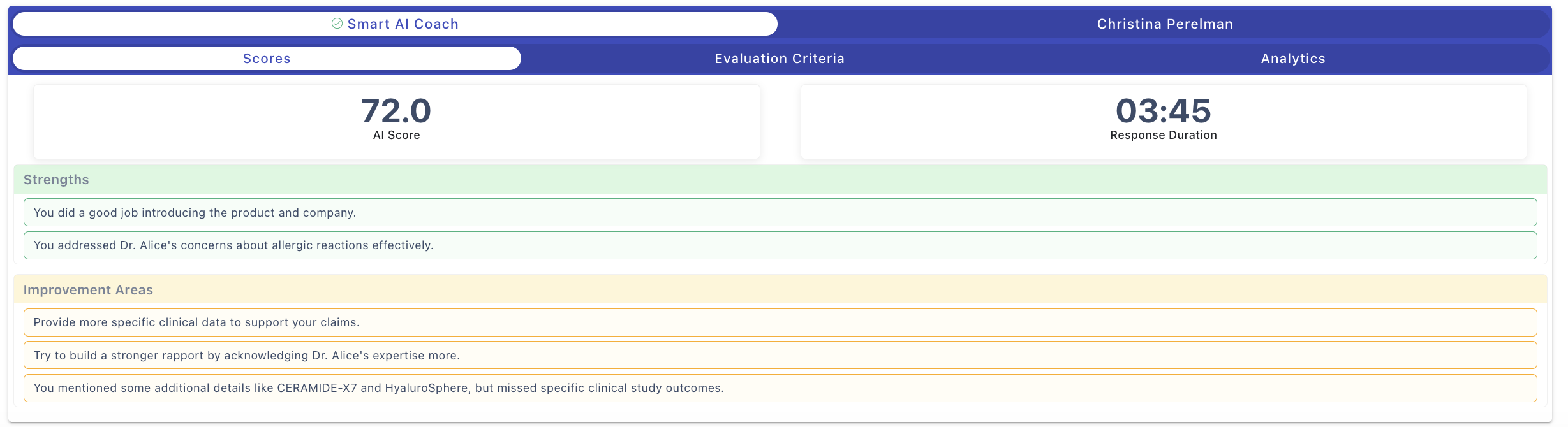
The Scores tab is the default view and shows:
- AI Score: Your overall performance score (for example, 72.0)
- Response Duration: How long your conversation lasted (displayed as minutes and seconds, for example, 03:45)
- Strengths: A section with green highlighting that lists specific things you did well. Each strength is shown as a separate item with clear, actionable feedback (for example, "You did a good job introducing the product and company")
- Improvement Areas: A section with yellow highlighting that identifies areas where you can improve. Each improvement area includes specific recommendations (for example, "Provide more specific clinical data to support your claims")
This tab gives you a quick overview of your performance and helps you understand what to focus on for your next attempt.
E. Evaluation Criteria Tab
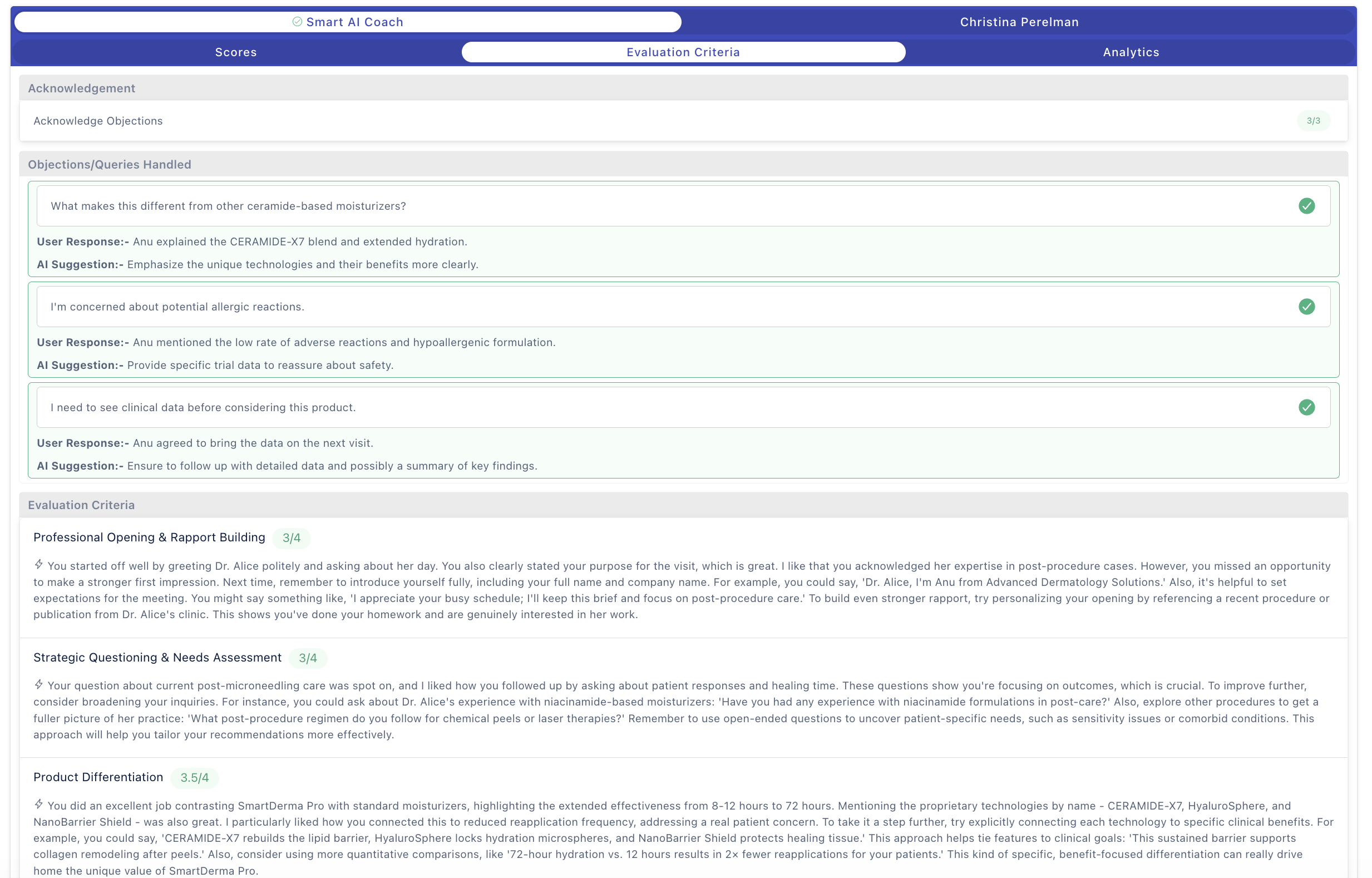
The Evaluation Criteria tab provides detailed analysis of how you performed on each objective and competency:
- Acknowledgement: Shows whether you acknowledged key objections or questions
- Objections/Queries Handled: Lists each objection or question the AI avatar raised during the conversation. For each one, you'll see:
- The specific objection or question
- User Response: A summary of how you answered
- AI Suggestion: Recommendations for how to improve your response
- A green checkmark if you handled it well
- Evaluation Criteria: Detailed feedback for each session objective, including:
- The objective name (for example, "Professional Opening & Rapport Building")
- A score showing how many points you earned out of the total possible (for example, 3/4)
- Detailed written feedback explaining what you did well and how to improve
- Specific suggestions for stronger performance
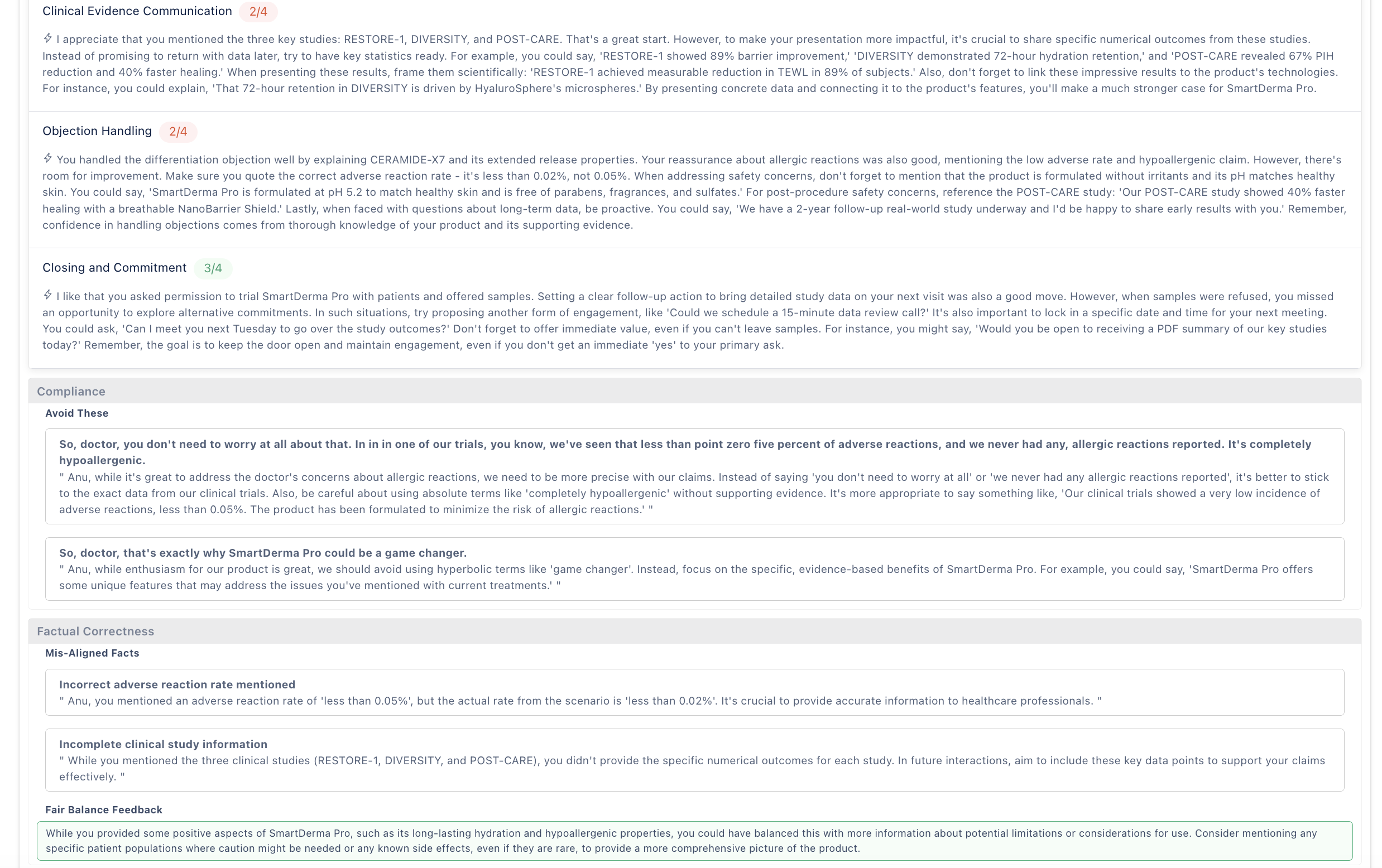
- Compliance: Flags any compliance issues under sections like:
- Avoid These: Statements you made that violate compliance guidelines, with explanations of why they're problematic
- Factual Correctness: Identifies any factual errors, such as misaligned facts or incomplete information
- Fair Balance Feedback: Notes if you need to provide more balanced information about benefits and risks
This tab helps you understand exactly where you gained or lost points and how to improve specific parts of your conversation.
F. Analytics Tab
The Analytics tab provides data-driven insights into your performance trends:
- Speaking Pace: Shows your words per minute with a gauge visualization. The system provides feedback on whether your pace is appropriate (for example, "Your pace is just right! Keep it up!" or "You are talking somewhat slowly")
- Score Growth Across Attempts: A line chart showing how your overall score has improved over multiple attempts. This helps you see your progress over time
- Objectives Progress Across Attempts: A detailed chart showing your score for each individual objective across all attempts. Different objectives are shown in different colors, making it easy to track which skills are improving and which need more practice
The Analytics tab is especially useful if you've made multiple attempts, as it shows your learning progression.
Viewing Manager Feedback
If your manager has reviewed your submission, their name appears at the top-right of the feedback screen (for example, "Christina Perelman").
To view your manager's feedback:
- Look for the manager's name in the top-right corner of the feedback screen
- Click on their name
- Their written feedback and any score adjustments will be displayed
Manager feedback appears alongside AI feedback, giving you a complete picture of your performance from both automated and human evaluation.
Key Tips
Review all three tabs: Each tab provides unique insights. The Scores tab gives you the big picture, Evaluation Criteria shows detailed feedback, and Analytics tracks your progress over time.
Focus on improvement areas: Pay special attention to the improvement areas and AI suggestions. These tell you exactly what to work on for your next attempt.
Compare scores across attempts: If you've completed multiple attempts, use the Analytics tab to see how your performance is improving. This helps you track progress and identify patterns.
Use feedback before retaking: Always review your detailed feedback before making another attempt. Understanding what to improve dramatically increases your chances of scoring higher next time.
Watch for compliance issues: If the Evaluation Criteria tab shows compliance or factual correctness feedback, address these issues carefully in your next attempt. Accuracy and compliance are critical in customer-facing conversations.